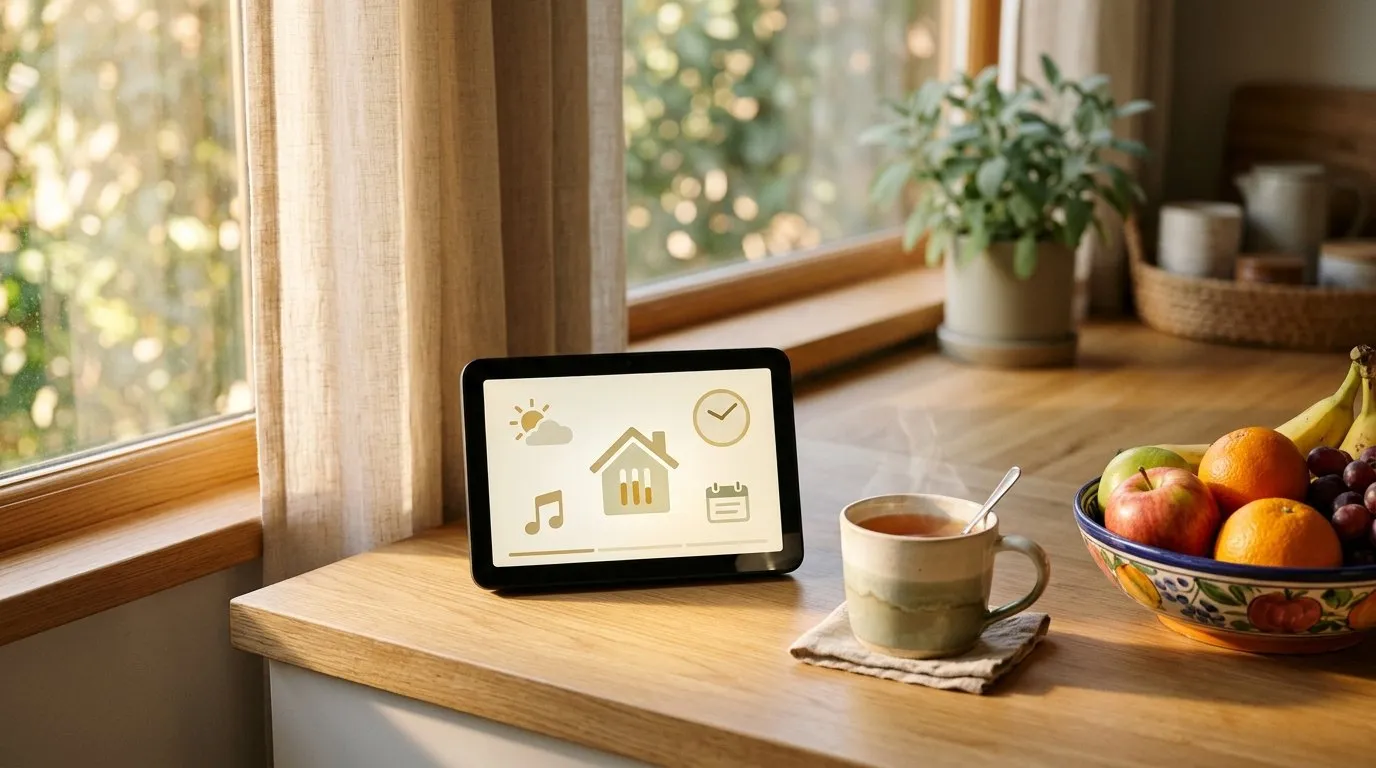
For most elderly parents, the Amazon Echo Show 8 is the right default pick. The 8-inch screen is large enough to read without squinting, video calls work with a single voice command (“Alexa, call Sarah”), and the Drop In feature lets family check in without the parent having to tap anything. It’s the sweet spot between the too-small Echo Show 5 and the larger, more expensive Echo Show 11.
If your parent already lives in Google world — Gmail, Android phone, Google Photos — the Google Nest Hub (2nd gen) is the better fit. And if the main use is a bedside clock with occasional video calls, the smaller Echo Show 5 does the job for less.
That’s the short answer. The rest of this guide covers who each display suits, where they fall short, and how to set one up so it actually gets used instead of ending up unplugged in a drawer.
What actually matters in a smart display for an older parent
Smart displays get marketed on features. For an elderly parent, only a few things really decide whether the device gets used after week one.
Screen size and viewing distance. An 8-inch screen viewed from across a kitchen counter looks about the size of a postcard. A 5-inch screen from the same distance looks like a playing card. For anyone with even mild vision changes, the extra inches matter more than any other spec. If you’re already thinking about vision support, our guide to reading glasses for computer work covers related ground.
Voice calling that just works. The whole point of these devices, for most families, is that Mom or Dad doesn’t have to swipe, tap, or find a contact. “Alexa, call my daughter” should connect. Both Echo Show and Nest Hub handle this well once contacts are set up, but Amazon’s ecosystem has a slight edge because almost everyone in the family already has the Alexa app installed somewhere.
Drop In vs. calling. Drop In (Amazon) and Home & Away (Google, via Duo/Meet) let family members connect without the parent answering. Some parents love this — it feels like a window between homes. Others find it intrusive. Talk about it before setting it up.
Photo frame mode. When the display isn’t in use, it cycles through family photos. For a lot of parents, this quietly becomes the feature they value most.
Setup burden. This matters more than people admit. If you have to be physically present to set it up, factor that in. None of these displays are hard to set up — but they’re not “plug in and done” either.
The picks
Amazon Echo Show 8 — best default for most parents
The Echo Show 8 is the one I’d recommend first for about 80% of families. The 8-inch screen is readable from across a room, video calling is straightforward, and the Alexa ecosystem is broad enough that you can add simple routines later — turning on lights, setting medication reminders, playing music, checking the weather.
Where it shines: video calls with grandkids, photo frame when idle, voice reminders that actually get heard, hands-free use from the kitchen or living room.
Where it falls short: the camera is fixed, so if your parent moves around during a call, they’ll drift out of frame. Privacy-minded parents may dislike the always-listening mic (there’s a physical mute switch, which helps).
Best for: a parent who already uses Amazon, lives alone, and would benefit from easier video calls and a visible reminder system.
Skip if: your parent is deeply uncomfortable with Amazon devices or doesn’t have reliable Wi-Fi.
Google Nest Hub (2nd generation) — best for Google households
If your parent uses Gmail, has an Android phone, or your family shares photos through Google Photos, the Nest Hub is the more natural choice. Setup pulls their contacts and photo albums in with less friction, and Google Assistant handles conversational questions (“What’s the weather in Phoenix where my sister lives?”) a bit more gracefully.
One thing worth noting: the 2nd-gen Nest Hub does not have a camera. That’s a feature for some families (no privacy worries, no “is it watching me?” anxiety) and a dealbreaker for others (no video calls from the device itself — though the parent can still receive Google Duo/Meet calls as audio-only).
Best for: Google-ecosystem families, or parents who want the photo frame and voice assistant without a camera in the house.
Skip if: video calling is the main reason you’re buying it.
Amazon Echo Show 5 — best for bedside use
The Echo Show 5 is the small one. It fits on a nightstand, works as a smart alarm clock, and handles everything the Echo Show 8 does — just on a smaller screen. For a parent who wants something by the bed for weather, alarms, a quick morning video call, and a sunrise wake-up, it’s plenty.
Best for: bedside placement, tight counter space, or a second display in another room.
Skip if: this is the only smart display in the house and video calls matter — the screen is genuinely small for anyone with vision changes.
Amazon Echo Show 11 — best for parents who move around during calls
The Echo Show 11 is the big-screen option, with an 11-inch Full-HD display — the largest and easiest to read of the four. For video calls it leans on an auto-framing camera that digitally pans and zooms to keep your parent centered in the picture even as they move around the kitchen, so the grandkids aren’t talking to an empty chair. (This replaces the old Echo Show 10’s motorized swivel base — the screen itself no longer physically rotates; if you want to tilt or turn it, Amazon sells an adjustable stand separately.)
The tradeoffs: it’s the most expensive of the four and needs the most counter space. And it leans harder into newer always-on presence detection, which privacy-minded parents may want to turn down.
Best for: a parent with vision changes who wants the biggest, clearest screen, or one who likes to keep moving during a call and stay in frame.
Skip if: budget is tight, counter space is limited, or a big always-listening screen on the counter feels like too much.
Setting it up so it actually gets used
A smart display that stays unplugged helps no one. A few things that make the difference:
- Set it up at their house, on their Wi-Fi, with their account. Not yours. Shortcuts here cause headaches later.
- Add 3–5 contacts and test each one. Walk through “Alexa, call [name]” with them while you’re there.
- Turn on photo frame mode with real family photos. This is what makes the device feel welcome rather than clinical.
- Decide about Drop In together. Don’t enable it without a conversation.
- Write the wake word and three sample commands on a sticky note and leave it next to the display for the first week.
If you’re building out a broader aging-in-place tech setup, our guides to video doorbells for elderly parents, smart thermostats for elderly parents, and automatic medication reminder systems cover complementary pieces.
FAQ
Q: Can my parent use a smart display without a smartphone? A: Yes, but someone (you, usually) needs a smartphone to run the setup app once. After that, the display works independently. The parent doesn’t need a phone to receive calls, see photos, or use voice commands day to day.
Q: Is Drop In safe? I’ve heard it lets people listen in. A: Drop In only works between accounts the parent has explicitly approved as contacts. A stranger can’t drop in. That said, approved family members can connect with a brief chime rather than a full call — which is the point for some families and uncomfortable for others. It can be turned off entirely in settings.
Q: What if my parent has hearing loss? A: Smart displays have adjustable volume and on-screen captions for calls (available on both Echo Show and Nest Hub). For TV audio specifically, a dedicated TV hearing device usually works better than relying on the smart display’s speaker.
Q: Will it work if their Wi-Fi is weak? A: Video calls need reasonably solid Wi-Fi. If their router is old or the display will be far from it, consider upgrading the router or adding a mesh extender before buying the display. Nothing kills adoption faster than choppy calls.
Q: Echo Show vs. just teaching them to use FaceTime on an iPad? A: Honest answer: if your parent already comfortably uses an iPad, FaceTime works fine and you don’t need a smart display. Smart displays earn their keep when tapping and swiping are the friction point — voice-first use is their real advantage.
Bottom line
For most families, start with the Echo Show 8. It’s the right size, handles video calls well, and doubles as a photo frame that keeps earning its spot on the counter. Go with the Nest Hub if you’re a Google household or want no camera, the Echo Show 5 for bedside use, and the larger Echo Show 11 if a parent with vision changes wants the biggest, clearest screen (and an auto-framing camera that keeps them in the picture as they move). Whichever you pick, set it up in person and add real family contacts before you leave — that’s what decides whether it gets used.